- iPhone Widgets
- iPhone Solar Widget for Enphase
iPhone Solar Widget for Enphase
iPhone Home Screen and Lock Screen widgets for Enphase solar systems: today's production, a banked-credit estimate, and fault and dirty-panel warnings. Free for personal use.
What it shows
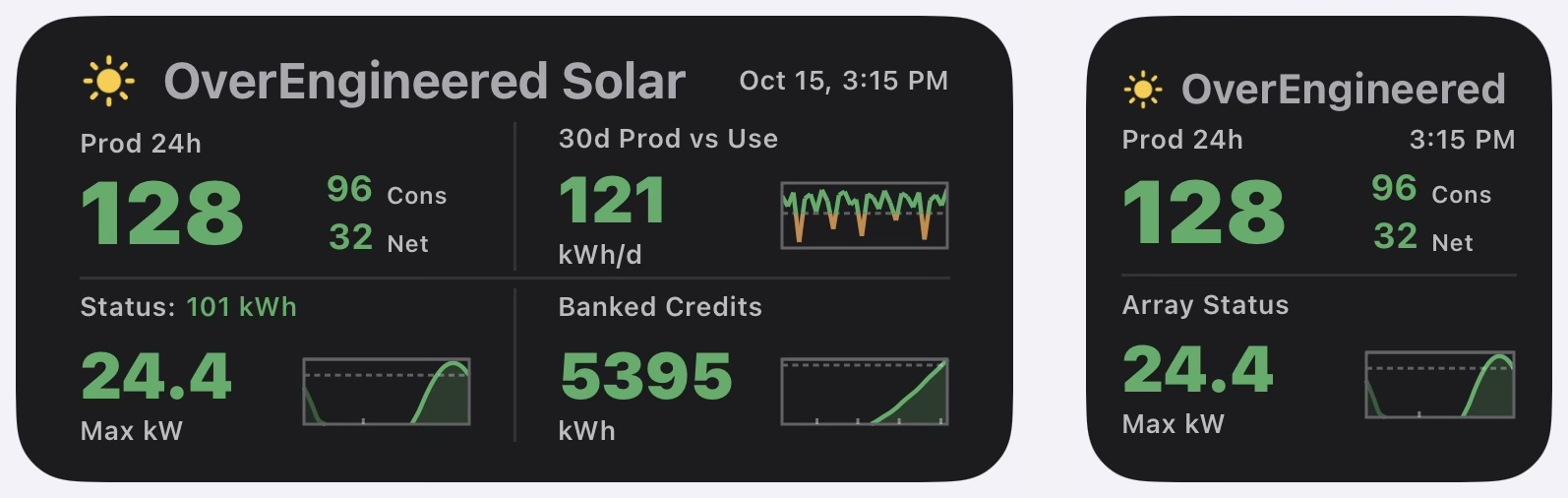
- Prod 24h: production over the past 24 hours as the big number, with consumption and net beside it, in kWh. Green or orange against your 30-day average.
- 30d Prod vs Use: your average daily production over the past 30 days, with each day in a small chart against your average use.
- Banked credits: an estimate of your net-metering balance, starting from the figure on your last bill, with a small chart of the last 12 months.
- Array status: the heading shows today’s production so far (green if you are ahead of yesterday at this time, orange if behind). Below it is a chart of the last 24 hours, with yesterday’s part faded, your recent peak power, and a verdict: normal, dirty panels, low winter sun, or a service fault reported by Enphase.
It comes in a medium and a small Home Screen size, plus a Lock Screen widget. An optional Today view counts from midnight instead of the past 24 hours.
It is not live: it updates about once an hour while the sun is up, because Enphase's free plan limits how often it can ask. It reads your data from Enphase's cloud service, and it does not show battery status.
Get it running
You will need an iPhone, an Enphase system with the login you use in the Enphase app, and a free Enphase developer account (the setup script walks you through creating one). Everything runs on your phone, and your settings and keys stay there.
Do this on your iPhone, in Safari. Each file is copied from the latest version on GitHub when the page opens.
Step 1. Print the guide. It has every step with pictures, and is easier to follow printed or open on a second screen.
Step 2. Install Scriptable. Get the free Scriptable app from the App Store.
Step 3. Copy the setup script. Tap Copy below. In Scriptable, tap +, paste, then tap Done. Press and hold the new script, tap Rename, and name it anything you like, for example Solar Setup.
Setup script
Loading…
Show the code, to copy by hand
Step 4. Copy the widget script. Do the same, and name it anything you like, for example Solar Widget.
Widget script
Loading…
Show the code, to copy by hand
Step 5. Run setup. Run your setup script and follow its steps. You can run it again any time you want to change a setting, such as a new banked-credit balance from your bill.
Step 6. Add the widget. Add a Scriptable widget to your Home Screen or Lock Screen, long-press it, choose Edit Widget, and pick your widget script.
To update later, copy the new version and paste it over the old script. Your settings are kept.
Built on caffeine.
This project took an unreasonable amount of coffee. If you like my work, buy me another one ;)
Buy Me a Coffee
Licensed under the PolyForm Noncommercial License 1.0.0: personal and other noncommercial use is free. Not affiliated with or endorsed by Enphase Energy, Inc. Enphase is a registered trademark of Enphase Energy, Inc.